

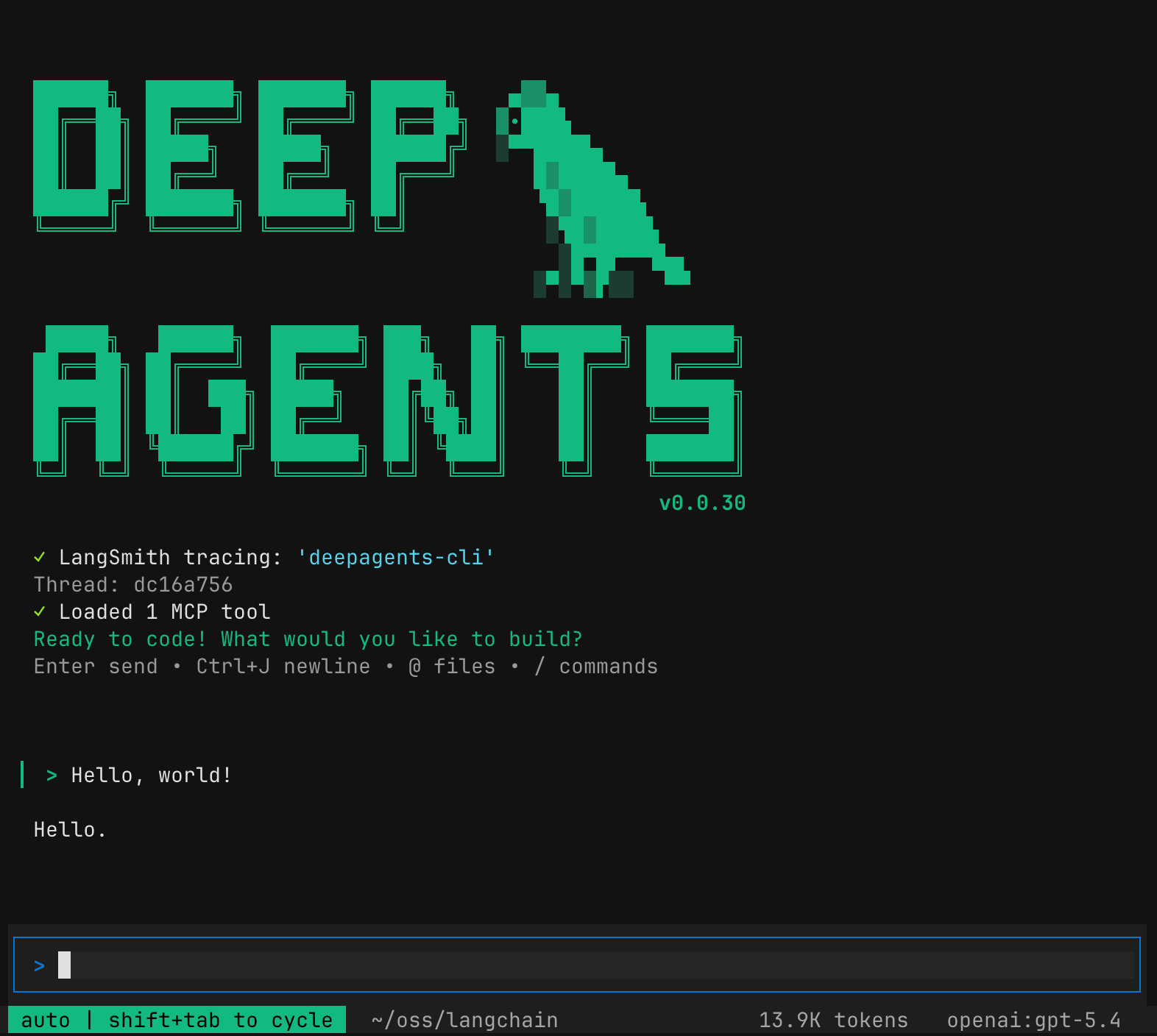
- File operations - read, write, and edit files in your project with tools that enable agents to manage and modify code and documentation.
- Shell command execution - execute shell commands to run tests, build projects, manage dependencies, and interact with version control systems.
- Web search - search the web for up-to-date information and documentation (requires Tavily API key).
- HTTP requests - make HTTP requests to APIs and external services for data fetching and integration tasks.
- Task planning and tracking - break down complex tasks into discrete steps and track progress through the built-in todo system.
- Memory storage and retrieval - store and retrieve information across sessions, enabling agents to remember project conventions and learned patterns.
- Context compaction & offloading - summarize older conversation messages and offload originals to backend storage, freeing context window space during long sessions.
- Human-in-the-loop - require human approval for sensitive tool operations.
- Skills - extend agent capabilities with custom expertise and instructions stored in skill directories.
- MCP tools - load external tools from Model Context Protocol servers via auto-discovered or explicit config files.
- Tracing - trace agent operations, tool calls, and decisions in LangSmith for observability and debugging.
Full list of built-in tools
Full list of built-in tools
Built-in tools
The agent comes with the following built-in tools which are available without configuration:1: Potentially destructive operations require user approval before execution. To bypass human approval, you can toggle auto-approve or start the deep agent with the
auto-approve option:When running the CLI non-interactively (via
-n or piped stdin), shell execution is disabled by default even with -y/--auto-approve. Use -S/--shell-allow-list to allowlist specific commands (e.g., -S "pytest,git,make"), recommended for safe defaults, or all to permit any command. The DEEPAGENTS_SHELL_ALLOW_LIST environment variable is also supported. See Non-interactive mode and piping for more details./conversation_history/{thread_id}.md), replacing them in context with the summary. The agent can still retrieve the full history from the offloaded file if needed. The compact_conversation tool lets the agent (or you) trigger offloading on demand. When called as a tool, it requires user approval by default.Quickstart
Set model credentials
Export your provider’s API key as an environment variable. For example:The CLI works with any LLM that supports tool calling — OpenAI, Anthropic, Google, Ollama, and many more. See Providers for setup details.
Install and run
The CLI ships with OpenAI, Anthropic, and Google support by default. Other providers (Ollama, Groq, xAI, etc.) are installed as optional extras — see Providers for details.
Give the agent a task
Enable tracing (optional)
See agent operations, tool calls, and decisions in LangSmith:
Providers
The CLI is intentionally lightweight—it ships with OpenAI, Anthropic, and Google support out of the box. Each additional model provider is a separate dependency, so you only pull in what you need.--model at launch or switch mid-session with /model.
Interactive mode
Type naturally as you would in a chat interface. The agent will use its built-in tools, skills, and memory to help you with tasks.Slash commands
Slash commands
Use these commands within the CLI session:
/model- Switch models or open the interactive model selector. See Switch models for details/remember [context]- Review conversation and update memory and skills. Optionally pass additional context/offload- Free up context window space by offloading messages to backend storage with a summary placeholder in the conversation. The agent can retrieve the full history from the offloaded file if needed./tokens- Display current context window token usage breakdown/clear- Clear conversation history and start a new thread/threads- Browse and resume previous conversation threads/reload- Refresh runtime configuration (API keys,.envchanges, shell allow-list) without restarting. Conversation state is preserved/trace- Open the current thread in LangSmith (requiresLANGSMITH_API_KEY)/editor- Open the current prompt in your external editor ($VISUAL/$EDITOR). See External editor/changelog- Open the CLI changelog in your browser/docs- Open the documentation in your browser/feedback- Open the GitHub issues page to file a bug report or feature request/version- Show installeddeepagents-cliand SDK versions/help- Show help and available commands/quit- Exit the CLI
Shell commands
Shell commands
Type
! to enter shell mode, then type your command.Keyboard shortcuts
Keyboard shortcuts
General
Non-interactive mode and piping
Use-n to run a single task without launching the interactive UI:
-n or -m, the piped content is prepended to the flag’s value.
The maximum piped input size is 10 MiB.
-S/--shell-allow-list to enable specific commands (e.g., -S "pytest,git,make"), recommended for safe defaults, or all to permit any command.
Clean output and buffering
Clean output and buffering
Use In non-interactive mode, the agent is instructed to make reasonable assumptions and proceed autonomously rather than ask clarifying questions. It also favors non-interactive command variants (e.g.,
-q for clean output suitable for piping into other commands, and --no-stream to buffer the full response (instead of streaming) before writing to stdout:npm init -y, apt-get install -y).Shell execution examples
Shell execution examples
Switch models
You can switch models during a session without restarting the CLI using the/model command, or at launch with the --model flag:
/model with no arguments to open an interactive model selector that displays available models grouped by provider.
For full details on switching models, setting a default, and configuring custom providers, see Model providers. For config.toml reference and lifecycle hooks, see Configuration.
Interactive model selector
Interactive model selector
The selector shows a detail footer for the highlighted model with context window size, input modalities (text, image, audio, PDF, video), and capabilities (reasoning, tool calling, structured output). Values overridden by
--profile-override or config.toml are marked with a yellow * prefix.Model parameters
Model parameters
Pass extra model constructor parameters when switching mid-session using These are session-only overrides and take the highest priority, overriding values from config file
--model-params:params. --model-params cannot be combined with --default.Configuration
The CLI stores all configuration under~/.deepagents/. Within that directory, each agent gets its own subdirectory (default: agent):
config.toml schema, provider parameters, profile overrides, and hook configuration — see Configuration.
Teach your agent project conventions
As you use the agent, it automatically stores information in~/.deepagents/<agent_name>/memories/ as markdown files using a memory-first protocol:
- Research: Searches memory for relevant context before starting tasks
- Response: Checks memory when uncertain during execution
- Learning: Automatically saves new information for future sessions
Customize your deep agent
There are two primary ways to customize any agent:-
Memory: Global and project-specific
AGENTS.mdfiles which are loaded in full at session start. Use memory for general coding style and preferences. - Skills: Global and project-specific context, conventions, guidelines, or instructions. Use skills for context that is only required when performing specific tasks.
Provide project or user context
AGENTS.md files provide persistent memory that is always loaded at session start.
- Global:
~/.deepagents/<agent_name>/AGENTS.md— loaded every session. - Project:
.deepagents/AGENTS.mdin any git project root — loaded when the CLI is run from within that project.
/remember to explicitly prompt the agent to update its memory and skills from the current conversation.
How memory works
How memory works
The agent may also read its memory files when answering project-specific questions or when you reference past work or patterns.The agent will update
AGENTS.md as you provide information on how it should behave, feedback on its work, or instructions to remember something.
It will also update its memory if it identifies patterns or preferences from your interactions.To add more structured project knowledge in additional memory files, add them in .deepagents/ and reference them in the AGENTS.md file.
You must reference additional files in the AGENTS.md file for the agent to be aware of them.
The additional files will not be read on startup but the agent can reference and update them when needed.When to use global vs. project AGENTS.md
When to use global vs. project AGENTS.md
Global
AGENTS.md (~/.deepagents/agent/AGENTS.md)- Your personality, style, and universal coding preferences
- General tone and communication style
- Universal coding preferences (formatting, type hints, etc.)
- Tool usage patterns that apply everywhere
- Workflows and methodologies that don’t change per-project
AGENTS.md (.deepagents/AGENTS.md in project root)- Project-specific context and conventions
- Project architecture and design patterns
- Coding conventions specific to this codebase
- Testing strategies and deployment processes
- Team guidelines and project structure
Use skills
Skills are reusable agent capabilities that provide specialized workflows and domain knowledge. You can use skills to provide your deep agent with new capabilities and expertise. Deep agent skills follow the Agent Skills standard. Once you have added skills your deep agent will automatically make use of them and update them as you use the agent and provide it with additional information. Use/remember to explicitly prompt the agent to update skills and memory from the current conversation.
Add skills
Add skills
-
Create a skill:
This generates:
-
Open the generated
SKILL.mdand edit the file to include your instructions. -
Optionally add additional scripts or other resources to the
test-skillfolder. For more information, see Examples.
Install community skills
Install community skills
You can use tools like Vercel’s Skills CLI to install community Agent Skills in your environment and make them available to your deep agents:Global installs (
-g) symlink skills into ~/.deepagents/agent/skills/ — the default agent’s user-level skills directory. Project-level installs (omit -g) place skills in .deepagents/skills/ relative to the current directory, making them available to any agent running in that project regardless of agent name.Global installs target the default
agent directory only. If you use a custom-named agent, either use project-level installs or manually symlink the skill into ~/.deepagents/{your-agent}/skills/.Skill discovery
Skill discovery
At startup, the CLI discovers skills from both Deep Agents and shared alias directories:When duplicate skill names exist, later-precedence directories override earlier ones (see App data).For project-specific skills, the project’s root folder must have a
.git folder.
When you start the CLI from anywhere within the project’s folder, the CLI will find the project’s root folder by checking for a containing .git folder.For each skill, the CLI reads the name and the description from the SKILL.md file’s frontmatter.
As you use the CLI, if a task matches the skill’s description, the agent will read the skill file and follow its instructions.List skills
List skills
Custom subagents
Define custom subagents as markdown files so the CLI agent can delegate specialized tasks to them. Each subagent lives in its own folder with anAGENTS.md file:
name and description (same as the SubAgent dictionary spec). The markdown body becomes the subagent’s system_prompt. In addition to the base spec, AGENTS.md files support an optional model frontmatter field that overrides the main agent’s model for this subagent. Uses the provider:model-name format (e.g., anthropic:claude-haiku-4-5-20251001, openai:gpt-4o). Omit to inherit the main agent’s model.
Other SubAgent fields (
tools, middleware, interrupt_on, skills) are not configurable via AGENTS.md frontmatter — custom subagents defined this way inherit the main agent’s tools. Use the SDK directly for full control.File format
File format
Subagent
AGENTS.md files use YAML frontmatter followed by a markdown body:Example: cost-efficient subagents
Example: cost-efficient subagents
Use a cheaper, faster model for simple delegation tasks while keeping the main agent on a more capable model:This overrides the built-in general-purpose subagent, routing all delegated tasks to a cheaper model. See Override the general-purpose subagent for more.
Use MCP tools
Extend the CLI with tools from external MCP (Model Context Protocol) servers. Place a.mcp.json at your project root and the CLI discovers it automatically. See the MCP tools guide for configuration format, auto-discovery, and troubleshooting.
Use remote sandboxes
The CLI uses the sandbox as tool pattern: the CLI process (LLM loop, memory, tool dispatch) runs on your machine, but agent tool calls (read_file, write_file, execute, etc.) target the remote sandbox, not your local filesystem. To get files into the sandbox, use a setup script or the provider’s file transfer APIs (see Working with files).
For a deeper look at sandbox architecture, integration patterns, and security best practices, see Sandboxes.
LangSmith sandbox support is included with the CLI by default. Modal, Daytona, and Runloop require installing extras.
Install provider dependency
- LangSmith
- Daytona
- Runloop
- Modal
Included by default when installing
deepagents-cli. No extra installation needed.Set provider credentials
- LangSmith
- Daytona
- Runloop
- Modal
Run the CLI with a sandbox
- LangSmith
- Daytona
- Runloop
- Modal
Sandbox flags and examples
Sandbox flags and examples
Examples:
Setup scripts
Setup scripts
Use The CLI expands
--sandbox-setup to run a shell script inside the sandbox after creation. This is useful for cloning repos, installing dependencies, and configuring environment variables.setup.sh
${VAR} references in setup scripts using your local environment variables. Store secrets in a local .env file for the setup script to access.Tracing with LangSmith
Enable LangSmith tracing to see agent operations in a LangSmith project:-
Enable LangSmith tracing:
-
Configure agent tracing for deep agent operations such as tool calls and agent decisions:
-
If you are building a LangChain app with Deep Agents, and want to separate agent traces from your app’s traces, also configure
LANGSMITH_PROJECT:
Command reference
Command-line options
Command-line options
CLI commands
CLI commands
All management subcommands support
--json for machine-readable output. See command-line options for details.Connect these docs to Claude, VSCode, and more via MCP for real-time answers.